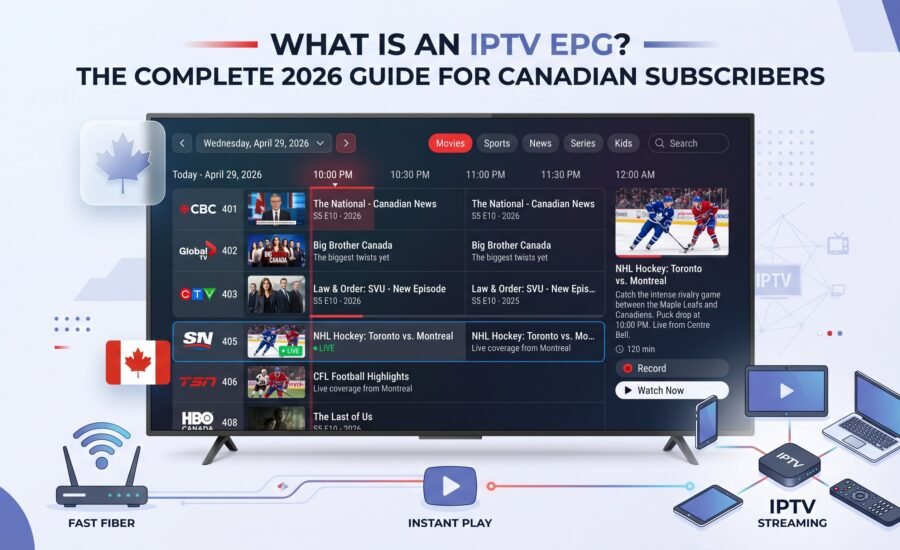
What Is an IPTV EPG?
The Complete 2026 Guide for Canadian Subscribers
The Electronic Program Guide (EPG) is what transforms a raw list of IPTV channels into a true television experience — with schedules, show descriptions, upcoming events, and a navigable grid just like a cable TV guide. This guide explains everything: what EPG is, how it works, how to set it up on every major app and device, how to fix common issues, and why a built-in EPG is a non-negotiable feature of any serious IPTV subscription in Canada.
- What is an IPTV EPG and what does it do?
- How does IPTV EPG work technically?
- Key EPG features every Canadian subscriber needs
- How to set up EPG on every major IPTV app
- EPG with Xtream Codes vs. M3U — which is better?
- Channel mapping — fixing missing EPG data
- Troubleshooting common EPG problems
- Why IPTVCAPITAL's built-in EPG stands out
- Frequently asked questions
What Is an IPTV EPG and What Does It Do?
EPG stands for Electronic Program Guide. It is the digital equivalent of a printed TV listings magazine — except it is embedded directly in your streaming app, updates automatically, and covers every channel in your subscription simultaneously.
When you open an IPTV app without EPG, you see a list of channel names and nothing else. You do not know what is currently airing, what comes next, or when a specific show or game starts. Finding content requires trial and error — browsing from channel to channel until you land on something worth watching. For subscribers with access to thousands of channels, this approach is genuinely frustrating.
With EPG enabled on your IPTV subscription, the experience changes entirely. You see a grid layout — just like the guide on a cable TV box — showing every channel, what is on right now, what aired before, and what is scheduled for the next several hours or days. You can browse by time, by category, by channel, or search for a specific programme. For sports fans, EPG shows upcoming game times, which channel carries them, and whether they are live right now.
An EPG is a TV guide built into your IPTV app. It is what makes the difference between scrolling blindly through 10,000 channels and navigating your entire subscription confidently — knowing exactly what is on, what is next, and where to find it.
How Does IPTV EPG Work Technically?
Understanding how EPG works behind the scenes helps you troubleshoot it when something goes wrong — and helps you appreciate why a quality IPTV provider invests significantly in EPG data infrastructure.
Your IPTV provider aggregates programme schedule data from broadcasters, third-party EPG data services, and direct channel feeds. For Canadian subscribers, this includes scheduling data from TSN, Sportsnet, CBC, RDS, and every other channel in the lineup. This data is formatted in XMLTV format — the industry standard for IPTV programme guide data.
The compiled programme data is stored as an XMLTV file (.xml or .gz format) on your IPTV provider's servers. This file is regularly updated — typically every 24 hours — to reflect accurate scheduling. The file contains programme titles, start and end times, descriptions, episode information, and category tags for every channel in the lineup.
When you open your IPTV app and navigate to the guide, the app downloads the XMLTV data from your provider's server and caches it locally on your device. This is why the first time you open the EPG after a fresh install or cache clear, it may take a moment to populate — the app is downloading and processing the full programme schedule file.
Each channel in your IPTV lineup has a unique channel ID. The IPTV player matches these IDs to the corresponding programme entries in the XMLTV file. When this matching works correctly, every channel shows its full schedule. When a channel's ID does not match the EPG data — for example, if a channel was recently added or renamed — the guide shows no information for that channel, which is when manual channel mapping (covered in Section 6) is needed.
Most IPTV apps refresh EPG data automatically — either on a fixed daily schedule or on app launch. This keeps your guide current without manual intervention. If a schedule changes (for example, a sports event overruns and pushes subsequent programmes back), the EPG will reflect the updated schedule on the next refresh cycle, which typically happens within 24 hours.
Key EPG Features Every Canadian IPTV Subscriber Needs
Not all EPG implementations are equal. A well-built EPG on a quality IPTV Canada service should include all of the following features as standard.
A good EPG shows not just what is on right now, but the full schedule for the next 7 days. This lets you plan ahead — checking when tonight's hockey game starts, or setting a reminder for a live event days in advance.
The ability to search for a specific show, team, or event name across all channels simultaneously. Instead of browsing 10,000 channels for tonight's Leafs game, search "Maple Leafs" and jump directly to the right channel and time.
Quality EPG data includes sport and event tags that allow your player to identify and highlight live sports programming. Sports fans can filter the guide to show only sports channels and live events across the entire schedule.
Each programme entry should include a synopsis, episode number, air date, and category. This is how you know whether a "movie" channel is showing something you actually want to watch without switching to it and checking yourself.
EPG data must display correctly for your local time zone. A Canadian subscriber in Vancouver (PT) watching an NHL game that starts at 7 PM ET should see 4 PM in their guide — not an incorrect UTC offset that puts the puck drop at the wrong time.
Some IPTV players — particularly TiviMate — allow you to set reminders for upcoming programmes directly from the EPG. A reminder notification tells you a programme is about to start, so you never accidentally miss a puck drop or kickoff.
How to Set Up EPG on Every Major IPTV App
EPG setup varies between IPTV player apps. With IPTVCAPITAL, EPG loads automatically when you log in using the Xtream Codes method — no manual URL entry required. Here is the setup process for each major app.
- 1 Open IPTV Smarters Pro and select Add User or Login with Xtream Codes API.
- 2 Enter your IPTVCAPITAL server URL, username, and password. Tap Add User.
- 3 The app connects, loads your channel list, and automatically downloads EPG data from IPTVCAPITAL's servers. Wait for the progress bar to complete — this takes 30–90 seconds on first load.
- 4 Navigate to Live TV. Open any channel and press the Info or Guide button on your remote to see the programme guide for that channel.
- 5 To access the full EPG grid: tap the TV Guide icon (calendar/grid icon) from the main menu. Browse by channel and time slot across the full schedule.
- 1 Open TiviMate and tap the + button to add a playlist. Select Xtream Codes.
- 2 Enter your IPTVCAPITAL server URL (without http:// prefix if prompted separately), username, and password. Tap Next.
- 3 TiviMate loads your channels and automatically fetches the EPG URL from the Xtream Codes server response. No manual EPG URL entry required — it is handled automatically.
- 4 Navigate to Settings → EPG to configure the refresh schedule (recommended: every 12–24 hours) and to verify the EPG source URL was loaded correctly.
- 5 On the home screen, press the remote's menu or guide button to open the full EPG grid. TiviMate has one of the best EPG grid interfaces of any IPTV player — smooth scrolling, fast navigation, and support for programme reminders.
- 1 Open V12Mate and select Add Playlist → Xtream Codes.
- 2 Enter your IPTVCAPITAL server URL, username, and password. Tap Add. The app connects and loads your channels automatically.
- 3 V12Mate fetches EPG data automatically from the Xtream Codes connection. Allow 1–2 minutes for the EPG to fully populate on first load.
- 4 From the Live TV section, press the guide button (or long-press a channel) to see the EPG for that channel. Use the left/right navigation to browse the schedule forward and backward.
- 1 Open Perfect Player and navigate to Settings → General → Playlist. Enter your IPTVCAPITAL M3U playlist URL (available from your IPTVCAPITAL account dashboard).
- 2 Go to Settings → General → EPG. Enter your IPTVCAPITAL XMLTV EPG URL. This URL is provided in your welcome email or account dashboard.
- 3 Tap Update EPG and wait for the guide to download and populate. This may take 2–5 minutes on first load depending on your internet speed.
- 4 Set EPG update frequency to 24 hours in settings to keep your guide current automatically.
- 1 Open GSE Smart IPTV and go to Settings → Remote Playlists. Tap the + button and select Xtream Codes API.
- 2 Enter your IPTVCAPITAL server URL, username, and password. Tap Add.
- 3 Return to the main screen and navigate to EPG Manager. Confirm that your EPG source has been automatically populated from the Xtream Codes connection.
- 4 Tap Refresh EPG to initiate the first guide download. Navigate to the TV Guide tab in the main menu to see the full programme grid.
EPG with Xtream Codes vs. M3U — Which Login Method Is Better?
IPTVCAPITAL supports two connection methods: Xtream Codes and M3U playlist. Both give you access to the same channels — but they handle EPG very differently, and the choice matters significantly for your guide experience.
| Feature | Xtream Codes Login | M3U Playlist URL |
|---|---|---|
| EPG loading | ✔ Automatic — EPG URL embedded | ~ Manual — EPG URL must be entered separately |
| EPG data quality | ✔ Higher — channel IDs pre-matched | ~ Variable — depends on M3U channel naming |
| Channel mapping accuracy | ✔ Better out-of-the-box | ✘ More manual mapping often needed |
| VOD and series access | ✔ Full categories automatically organised | ~ Depends on app support |
| Account management | ✔ Renew subscription without re-entering URL | ~ May require URL update on renewal |
| App compatibility | ✔ All major apps | ✔ All apps including less common players |
| Recommended for EPG | ✔ Yes — strongly recommended | ~ Only if Xtream Codes is not available |
Always use Xtream Codes login when setting up your IPTVCAPITAL subscription on any compatible app. The EPG loads automatically, channel matching is more accurate, and the overall setup experience is significantly smoother. Only use M3U if you are using a specialised app that does not support Xtream Codes, or if your specific use case requires a static M3U URL.
Channel Mapping — Fixing Missing EPG Data for Specific Channels
Even with a well-maintained EPG, occasionally a specific channel will show no programme information while all others display correctly. This is almost always a channel ID mismatch — the channel's ID in your IPTV player does not match the corresponding ID in the EPG data file. Channel mapping is the process of manually correcting that connection.
Why Channel Mapping Is Needed
When a new channel is added to the IPTVCAPITAL lineup, or when a channel is renamed or reclassified, there can be a temporary ID mismatch between the channel entry in your app and its entry in the XMLTV EPG file. This is especially common immediately after a new sports season begins (when broadcasters update their schedule systems) or after major programming changes.
How to Map a Channel in IPTV Smarters Pro
- Navigate to the channel that shows no EPG data in your guide.
- Long-press the channel name (or press the options/menu button on your remote).
- Select EPG Mapping or Match EPG from the context menu.
- A search box appears — type the channel name (e.g., "TSN1" or "Sportsnet Ontario") and select the correct match from the list that appears.
- Tap Save. The EPG data for that channel will populate on the next guide refresh.
How to Map a Channel in TiviMate
- Open TiviMate and navigate to the channel with missing EPG data.
- Press and hold the channel in the channel list, then select Edit Channel.
- Find the EPG ID field and tap it.
- Search for the correct EPG entry by channel name and select it.
- Save the change. The guide will update on the next EPG refresh cycle.
If a large number of channels are missing EPG data simultaneously — not just one or two — the issue is almost certainly on the provider's server side rather than a local channel mapping problem. In this case, contact IPTVCAPITAL support directly. Our team can investigate the XMLTV feed and resolve server-side EPG issues typically within a few hours. Individual channel mapping fixes are a local workaround; widespread EPG outages require server-side intervention.
Troubleshooting Common EPG Problems
Most EPG issues have straightforward causes and straightforward fixes. Here are the five most common problems encountered by Canadian IPTV subscribers and exactly how to resolve them.
The EPG shows the correct programmes, but they are offset by several hours — either in the past or in the future. For example, a Leafs game shows as starting at 10 PM when it actually starts at 7 PM ET. This is almost always a time zone configuration issue in your IPTV player rather than a problem with the EPG data itself.
Go to your IPTV app's settings and find the EPG or Time Zone section. Set your time zone to match your actual location: Eastern (ET/EST), Central (CT/CST), Mountain (MT/MST), or Pacific (PT/PST). In IPTV Smarters, this is under Settings → Time Zone. In TiviMate, it is under Settings → EPG → Time Offset. After changing, force-refresh the EPG.
The EPG grid is visible but shows no programme data — just empty time slots across all channels. This typically means the EPG file failed to download completely, the cache is corrupted, or the EPG URL is temporarily unreachable.
First, clear your IPTV app's cache (device Settings → Applications → Your IPTV App → Clear Cache). Reopen the app and force-refresh the EPG from within the app's settings. If the problem persists, log out of your IPTVCAPITAL account in the app, restart your streaming device, then log back in using Xtream Codes. The fresh login re-fetches all data including the EPG URL from IPTVCAPITAL's servers.
The EPG guide takes several minutes to load or becomes unresponsive while populating. This is usually caused by a slow internet connection or a device with limited RAM struggling to process a large XMLTV file covering thousands of channels.
Switch to a wired Ethernet connection for faster file downloads if possible. If your device has limited RAM (older Firestick models or budget Android boxes), reduce the EPG refresh frequency to once per 24 hours rather than more frequently — this reduces the processing load. On TiviMate, disable EPG for channel groups you never watch (non-sports channels, for example) to reduce the total data volume the app processes on each refresh.
The majority of channels display their programme guide correctly, but a handful of specific channels — often newly added channels or recently renamed ones — show no EPG data. The EPG file is loading correctly; there is a channel ID mismatch for those specific channels.
Use the channel mapping feature in your app (detailed in Section 6 above) to manually match the affected channels to their correct EPG entries. If channel mapping is not available in your app, try forcing an EPG refresh — IPTVCAPITAL updates EPG mappings server-side regularly, and a fresh download will often pick up the corrected channel IDs automatically.
The EPG shows programme schedules from yesterday or earlier — listings are clearly out of date. This means your app is serving cached EPG data rather than fetching the current file from IPTVCAPITAL's servers. The auto-refresh has either failed or been disabled.
Manually trigger an EPG update from within your app's settings. In IPTV Smarters: tap the Refresh icon in the EPG section. In TiviMate: Settings → EPG → Update Now. Confirm that automatic EPG refresh is enabled and set to a sensible interval (every 24 hours is standard). If auto-refresh is enabled but still producing stale data, clear the app's cache completely and reload — this forces a clean download of the current EPG file.
Why IPTVCAPITAL's Built-in EPG Stands Out for Canadian Subscribers
Not all IPTV providers invest equally in EPG quality. For Canadian subscribers, the difference between a well-maintained EPG and a poorly maintained one is the difference between a cable-like TV experience and a frustrating channel-surfing exercise. Here is what sets IPTVCAPITAL's EPG apart.
Canadian Channels First
IPTVCAPITAL's EPG is built with Canadian broadcast schedules as a priority — not an afterthought. TSN game times, Sportsnet regional schedules, CBC Hockey Night in Canada, RDS Canadiens broadcasts, and all other major Canadian channels are mapped accurately, including the regional time zone variations that matter for West Coast subscribers watching Eastern broadcasts. Programme titles and descriptions are in the correct official language (English for English channels, French for RDS and Radio-Canada).
7-Day Schedule Ahead
IPTVCAPITAL's EPG provides a minimum 7-day programme window — letting sports fans check NHL, NBA, and MLB game times days in advance, and allowing families to plan movie nights or find upcoming series episodes without having to check external TV listing websites.
Daily Automatic Updates
The EPG data refreshes daily on IPTVCAPITAL's servers, meaning your guide reflects current scheduling including last-minute programme changes, sports event overruns, and breaking news replacements. You do not need to manually trigger updates — your app fetches the latest data automatically on its refresh cycle.
Loads Automatically with Xtream Codes
There is no manual EPG URL entry required for IPTVCAPITAL subscribers using Xtream Codes login. The EPG URL is embedded in the server response when you log in — your player fetches it automatically and begins populating the guide within seconds of your first login. For subscribers who are not technically confident, this zero-configuration approach means the EPG simply works without any additional steps.
IPTVCAPITAL's built-in EPG is included with every subscription tier — from the most basic single-connection plan to multi-connection household plans. There is no separate EPG add-on, no premium guide upgrade, and no hidden fee for programme guide access. It is a core part of the IPTVCAPITAL experience, not an optional extra.
Frequently Asked Questions
Is EPG included with my IPTVCAPITAL subscription?
Yes. EPG is included as a standard feature in all IPTVCAPITAL subscription plans. There is no separate fee, no upgrade required, and no EPG URL to manually source. Simply log in to your IPTV player using the Xtream Codes method and the guide populates automatically.
How far ahead does the IPTVCAPITAL EPG show?
IPTVCAPITAL's EPG typically shows programme schedules 7 days ahead from the current date. This means you can check NHL playoff game times, upcoming sports events, and TV schedules for the coming week without leaving your IPTV player or consulting an external listings website.
Does the EPG work on all IPTV player apps?
EPG works on all major IPTV players including IPTV Smarters Pro, TiviMate, V12Mate, GSE Smart IPTV, Perfect Player, and most other players that support XMLTV format. Apps using Xtream Codes login load EPG automatically. Apps using M3U playlists may require the XMLTV EPG URL to be entered manually — contact IPTVCAPITAL support for your URL if needed.
Why does my EPG show the right programme but at the wrong time?
This is almost always a time zone setting in your IPTV player. Go to your app's settings, find the EPG or time zone section, and set it to your correct local time zone (Eastern, Central, Mountain, or Pacific). After saving, force-refresh the EPG and the times will correct themselves.
How often does the EPG refresh?
IPTVCAPITAL updates its EPG data on the server side daily. Your IPTV app then fetches this updated data on its own refresh cycle — typically every 12–24 hours depending on your player's settings. You can also force a manual refresh at any time from within your app's EPG settings if you need immediate updated schedule data.
Can I use the EPG to find a specific game or show?
Yes, if your IPTV player supports programme search within the EPG — IPTV Smarters Pro and TiviMate both do. Simply open the search function in your guide and type the event name, team name, or show title. Matching programmes across all channels will appear with their channel name, air time, and a brief description. This is the fastest way to find a specific sports game without manually browsing your channel list.
What should I do if the EPG stops working entirely?
Start by clearing your IPTV app's cache (device Settings → Applications → Your App → Clear Cache), then reopen the app and force-refresh the EPG from within settings. If the issue persists after a full cache clear and fresh EPG download, log out of your IPTVCAPITAL account within the app, restart your device, and log back in with your Xtream Codes credentials. If the problem continues after these steps, contact IPTVCAPITAL support — server-side EPG issues are rare but can occur and our team resolves them promptly.
Make Your IPTV Subscription Feel Like Real Television
An EPG is not a nice-to-have feature — it is what separates a real streaming experience from a raw list of channel numbers. For Canadian families following hockey schedules, sports fans tracking game times across time zones, and anyone who wants to navigate thousands of channels without frustration, a well-maintained EPG is essential.
IPTVCAPITAL's built-in EPG loads automatically, covers every Canadian broadcaster with accurate scheduling and time zone support, refreshes daily, and requires no manual configuration when using Xtream Codes login. It is a complete, cable-quality TV guide included with every IPTV Canada subscription — with nothing extra to configure and nothing extra to pay.
📺 Get the Full EPG Experience with IPTVCAPITAL
A complete built-in TV guide. 10,000+ Canadian and international channels. HD and 4K quality. No contracts. Set up in 15 minutes — EPG included automatically.
Start Your IPTVCAPITAL Subscription