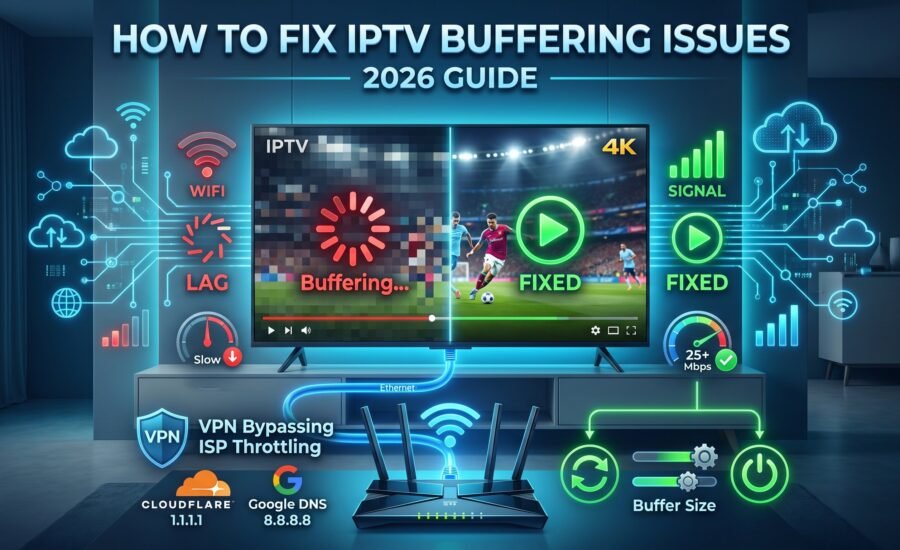
Even a premium IPTV subscription can buffer if your setup isn't optimised. The good news? Most buffering issues are resolved within minutes once you identify the root cause. This 2026 guide covers the five most effective fixes — from internet optimisation to choosing the right IPTV Canada service.
⚡ What Causes IPTV Buffering?
Before jumping into fixes, it helps to understand what's actually causing the problem. IPTV buffering in 2026 most commonly comes from one of four sources:
- Slow or unstable internet connection — not enough bandwidth for the stream quality you've selected
- ISP throttling — your internet provider is intentionally slowing down video streaming traffic
- App misconfiguration — incorrect player settings, outdated apps, or accumulated cache
- Weak IPTV server infrastructure — overloaded servers from a low-quality provider
Optimise Internet
Check your speed and switch to Ethernet for a stable, fast connection.
Adjust App Settings
Switch players, increase buffer size, and disable hardware acceleration.
Clear Cache
Remove accumulated temporary files slowing your app and device down.
Use a VPN
Bypass ISP throttling that deliberately slows streaming traffic.
Switch Provider
If the server is the problem, a reliable IPTV Canada service makes all the difference.
🌐 Optimise Your Internet Connection
Your internet speed and stability are the single biggest factors in IPTV streaming performance. An inadequate or inconsistent connection will cause buffering no matter how good your app or provider is.
Check Your Current Internet Speed
Run a speed test at Speedtest.net right now and compare your results to the recommended minimums below:
| Stream Quality | Minimum Speed Required | Recommended Speed | Status |
|---|---|---|---|
| SD (480p) | 5 Mbps | 10 Mbps | ✓ Low demand |
| HD (720p / 1080p) | 15 Mbps | 25 Mbps | ✓ Standard |
| Full HD (1080p) | 25 Mbps | 35 Mbps | ✓ Recommended |
| 4K Ultra HD | 50 Mbps | 80+ Mbps | ⚠ High demand |
Switch from Wi-Fi to Ethernet
This single change eliminates the majority of buffering complaints. Wi-Fi is susceptible to interference from walls, neighbouring networks, and competing devices. A wired Ethernet connection delivers:
- Consistent speeds — no signal drops or interference
- Lower latency — critical for live sports and news streams
- No packet loss — every data packet arrives intact and on time
Additional Connection Fixes
- Restart your modem and router — unplug both for 30 full seconds, then reconnect
- Disconnect devices not actively being used — every connected device competes for bandwidth
- Move your router closer to your streaming device if Ethernet is not possible
- If using Wi-Fi, connect to your 5 GHz band rather than 2.4 GHz for higher speeds and less interference
- Contact your ISP if your measured speed is consistently below what you are paying for
⚙️ Adjust Your IPTV App Settings
Incorrect app configuration is responsible for a large proportion of buffering complaints — even on fast internet connections. The default settings in many IPTV apps are not optimised for every device and network type.
Switch Your Video Player
Most IPTV apps offer a choice of video player engines. Navigate to Settings → Player Settings and try these options in order:
- ExoPlayer — best for most Android devices and Fire TV Sticks; highly efficient and widely compatible
- VLC Player — excellent fallback for streams that ExoPlayer struggles with; handles more codec formats
- Software Decoder — use this if hardware acceleration is causing issues on your specific device
Increase Buffer Size
A larger buffer allows your app to pre-load more of the stream before playback — smoothing out small network fluctuations before they become visible stutters.
- Navigate to Settings → Playback → Buffer Size (varies by app)
- Set buffer size to 5–10 seconds — this is the sweet spot for most connections
- Enable Aggressive Buffer Mode if your app offers it
- Avoid setting the buffer too high (above 15 seconds) as it can increase initial load time
Other Settings to Adjust
- Temporarily reduce stream quality from 4K or Full HD to 1080p or Auto while troubleshooting
- Disable hardware acceleration if your device shows pixelation or sudden crashes during playback
- Turn off EPG auto-refresh during playback — guide data downloads compete with your video stream
- If available, switch to the nearest server location in your provider's server list — closer servers mean lower latency
🗑️ Clear Cache and Restart Your Device
Over time, accumulated cache files, temporary data, and background processes degrade app performance and can cause buffering even on perfectly healthy internet connections.
How to Clear Cache on Android / Fire TV Stick
- Go to Settings → Applications → Manage Installed Applications
- Scroll to your IPTV player app and select it
- Tap Clear Cache — this removes temporary files without affecting your login or playlists
- If buffering continues, tap Clear Data — note that this will reset your app and require you to log back in
- Restart your device after clearing cache to free up RAM
How to Clear Cache on Smart TV
- Navigate to Settings → Support → Device Care → Manage Storage (Samsung) or similar on your TV brand
- Locate your IPTV app and select Clear Cache
- Restart the TV after clearing — hold the power button for 5 seconds for a full restart on most smart TVs
Additional Device Optimisation Tips
- Fully uninstall and reinstall your IPTV app for the cleanest possible start
- Close all other apps running in the background before launching your IPTV player
- Check your device's available storage — less than 500 MB free can cause significant performance issues
- Consider factory resetting older Fire TV Sticks or Android boxes that have accumulated years of residual data
- Ensure your device's firmware and app are both updated to the latest available version
🔒 Use a VPN to Bypass ISP Throttling
In 2026, ISP throttling of video streaming traffic is widespread in Canada. Many internet providers intentionally reduce bandwidth for streaming services — particularly during evenings and weekends — to manage network congestion. A VPN encrypts your traffic so your ISP cannot identify and throttle your IPTV streams.
How to Know If Your ISP Is Throttling Your IPTV
- Buffering consistently worsens in the evenings (6 pm – 11 pm) or on weekends
- A speed test shows fast download speeds but IPTV still buffers heavily
- Buffering stops completely when a VPN is connected — this is the clearest indicator of throttling
- Non-video internet use feels normal while video streaming consistently underperforms
How to Set Up a VPN for IPTV
- Download a reputable VPN app compatible with your streaming device (ExpressVPN, NordVPN, Surfshark, or ProtonVPN are all solid choices)
- Choose a VPN server located in Canada or close to your physical location for the best speeds
- Connect to the VPN before launching your IPTV application
- Use WireGuard protocol for the best balance of speed and encryption in 2026
- Test buffering on channels that previously struggled — if it improves, throttling was the cause
- Experiment with 2–3 different server locations to find the fastest one for your network
📡 Upgrade to a Reliable IPTV Canada Service
If you have worked through all four steps above and buffering persists, the problem is almost certainly with your provider's server infrastructure. Not all IPTV services are built equally — low-quality providers overload their servers, use outdated streaming technology, and offer no redundancy when traffic spikes.
Signs Your IPTV Provider Is the Problem
- Buffering affects all channels simultaneously — not just one or two
- Issues occur even with perfect internet and a VPN connected
- Other users on the same service report identical problems at the same times
- Customer support is unresponsive or offers no technical solution
- Your provider's server count and uptime SLA are not published or are unclear
What to Look for in a Quality IPTV Canada Service in 2026
- High uptime guarantee — look for 99.9% uptime with redundant server infrastructure
- Multiple server locations — more servers mean traffic is distributed and buffering is reduced
- Anti-freeze technology — modern providers use this to prevent momentary stream freezes
- HD and 4K stream quality — proper encoding, not upscaled SD content
- 24/7 customer support — fast response when technical issues arise
- Free trial available — test before you commit to a full IPTV subscription
- Canadian-focused content — CBC, TSN, Sportsnet, CTV, and RDS channels included
🍁 Looking for a Reliable IPTV Canada Service?
Stream over 10,000 live channels, VOD content, and Canadian sports in HD and 4K — with 99.9% uptime, anti-freeze technology, and 24/7 support. No buffering, no contracts.
Start Your Free Trial at iptvcapital.ca →💡 Bonus Tips for Smooth Streaming in 2026
Beyond the five main steps, these additional optimisations can make a measurable difference to your streaming experience:
Upgrade Your Streaming Hardware
If your streaming device is more than 3–4 years old, it may struggle with the decoding demands of modern HD and 4K IPTV Canada service streams. Consider upgrading to:
- Amazon Fire TV Stick 4K Max (2024/2025) — excellent performance, affordable price, wide app support
- NVIDIA Shield TV Pro — the top-tier option for 4K IPTV with Dolby Vision and Atmos support
- Apple TV 4K (3rd generation) — ideal for iOS/macOS users wanting a premium, stable experience
- Formuler Z11 Pro Max — purpose-built for IPTV with dedicated hardware acceleration
Optimise Your Home Network in 2026
- If your router is over 4 years old, upgrade to a Wi-Fi 6 or Wi-Fi 6E router — significantly better throughput for multiple simultaneous streams
- Use QoS (Quality of Service) settings on your router to prioritise streaming device traffic
- Consider a mesh Wi-Fi system if you have a large home with dead zones affecting signal strength
- Place your router centrally in your home and elevated off the floor for the best signal distribution
Use DNS Optimisation
Switching your DNS to a faster provider can marginally improve stream startup times and reduce initial buffering on channel switches:
- Cloudflare DNS:
1.1.1.1/1.0.0.1— fastest DNS resolver globally in 2026 - Google DNS:
8.8.8.8/8.8.4.4— reliable and widely supported
❓ Frequently Asked Questions About IPTV Buffering
✅ Summary — Your 2026 Buffering Fix Checklist
IPTV buffering in 2026 is almost always preventable. Run through this checklist in order and you will resolve the problem in the majority of cases:
- Run a speed test — confirm at least 25 Mbps for HD, 50+ Mbps for 4K
- Switch your streaming device from Wi-Fi to Ethernet
- Restart your modem and router (30 seconds unplugged)
- Change your IPTV app player to ExoPlayer or VLC
- Increase buffer size to 5–10 seconds in app settings
- Clear app cache and restart your streaming device
- Connect a VPN and test — if buffering stops, ISP throttling is the cause
- Test on a different streaming device to rule out hardware issues
- If all else fails — switch to a higher-quality IPTV Canada provider
If you are looking for a Canadian IPTV service that is built to eliminate buffering — with redundant servers, anti-freeze technology, 99.9% uptime, and 24/7 support — visit iptvcapital.ca and start your free trial today.