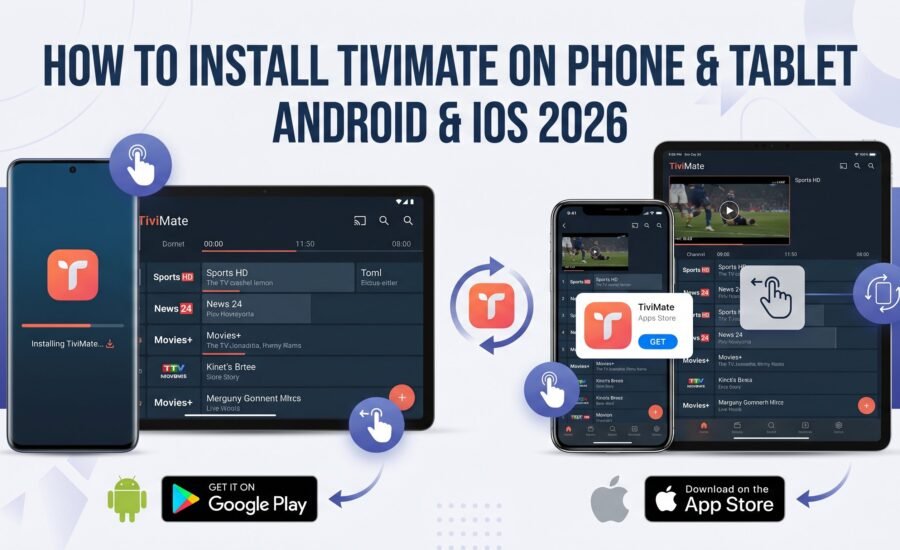
How to Install TiviMate on Your Phone & Tablet —
Complete 2026 Guide
Want to take your IPTVCAPITAL subscription with you? TiviMate on Android phones and tablets gives you access to your full channel lineup — live Canadian sports, news, movies, and series — anywhere you have internet. This complete guide covers installation, playlist setup, EPG configuration, iOS alternatives, and troubleshooting.
- What you need before you start
- Which device are you using?
- Android — Method 1: Install via Google Play Store
- Android — Method 2: Install via Official APK
- iPhone & iPad — Best TiviMate alternatives for iOS
- Add your IPTVCAPITAL playlist to TiviMate
- Set up EPG on your phone or tablet
- TiviMate Free vs Premium on mobile
- Tips for the best mobile IPTV experience
- Troubleshooting common issues
- Frequently asked questions
What You Need Before You Start
TiviMate is a dedicated IPTV player — it streams content from your subscription but does not include any channels of its own. Before installing, confirm you have the following ready.
- An active IPTVCAPITAL subscription — if you have not subscribed yet, visit iptvcapital.ca first. TiviMate cannot stream anything without a valid IPTV subscription providing the content.
- Your IPTVCAPITAL credentials — keep your welcome email open. You will need your server URL, username, and password (for Xtream Codes login) or your M3U playlist URL.
- An Android phone or tablet running Android 5.0+ — TiviMate is an Android application. For iPhones and iPads, scroll to Section 5 for the best iOS alternatives that work with IPTVCAPITAL.
- A stable internet connection — minimum 10 Mbps for HD streaming, 25 Mbps for 4K. Mobile data works but Wi-Fi delivers more consistent results for live sports.
TiviMate is built exclusively for Android. It is not available on the Apple App Store and cannot be installed on iPhones or iPads through any official channel. If you are on iOS, jump directly to Section 5 for the recommended IPTV players for iPhone and iPad that work with your IPTVCAPITAL subscription.
Which Device Are You Using?
The installation process varies depending on your device. Use this quick reference to jump straight to the right section for you.
Android — Method 1: Install TiviMate via Google Play Store
The Google Play Store is the easiest and most reliable way to install TiviMate on an Android phone or tablet. It handles the download, installation, and future automatic updates with no additional setup.
On your Android phone or tablet, tap the Google Play Store icon. This is the colourful triangle icon typically found on your home screen or in your app drawer. Make sure your device is connected to the internet before proceeding.
Tap the Search bar at the top of the Play Store and type TiviMate. The full app name is TiviMate IPTV Player, developed by Artem Nekrasov. It has an orange and white TV icon. Tap on it in the search results to open the app page.
On the TiviMate app page, tap the green Install button. The app is free to download (approximately 15–20 MB). The download and installation typically takes 20–40 seconds on a Wi-Fi connection. Watch the progress indicator until installation is complete.
Once installation is complete, tap Open directly from the Play Store, or find TiviMate in your app drawer and tap it. The app opens to a welcome screen prompting you to add a playlist. Proceed to Section 6 to connect your IPTVCAPITAL subscription.
- Verified download — you are getting the official, unmodified TiviMate app
- Automatic updates — TiviMate updates install automatically when available
- No additional permissions needed — no need to enable Unknown Sources
- Fastest installation method — one-tap process from search to open
Android — Method 2: Install TiviMate via Official APK
If TiviMate does not appear in the Google Play Store on your specific Android device (this can happen on some older devices, certain regional Play Store configurations, or budget Android tablets), you can install it directly using the official APK from the TiviMate website.
Always download TiviMate APKs from tivimate.com — the official TiviMate website. Do not download APKs from third-party sites, app stores, or forums. Third-party APKs may be modified, outdated, or contain malware. The official site is the only safe source for the TiviMate APK.
Before downloading an APK, you need to allow your device to install apps from outside the Play Store. On Android 8.0+: open Settings → Apps & Notifications → Special App Access → Install Unknown Apps. Find your browser (Chrome, Firefox, etc.) and toggle Allow from this source to ON. On older Android: go to Settings → Security → Unknown Sources and toggle it on.
Open your phone or tablet's web browser and navigate to tivimate.com. Find the APK download link on the homepage or Downloads section. Tap the download link. Your browser will download the APK file — typically named something like TiviMate_x.x.x.apk. The download takes 10–30 seconds on a standard Wi-Fi connection.
Once the download completes, your browser will show a notification or banner. Tap Open or Open File. Alternatively, find the downloaded APK in your Files or Downloads app and tap it from there. Android will launch the package installer.
Android will display an installation confirmation screen showing the app name and the permissions it requires. Review these and tap Install. The installation takes approximately 10–20 seconds. When complete, the screen will show "App installed."
Tap Open on the installation completion screen, or find TiviMate in your app drawer. The app launches to the welcome screen. You can optionally delete the APK file from your Downloads folder to free up storage — it is no longer needed once TiviMate is installed.
iPhone & iPad — Best TiviMate Alternatives for iOS
TiviMate is not available on iOS and cannot be installed on iPhones or iPads through any legitimate channel. However, your IPTVCAPITAL subscription credentials work with all major IPTV player apps available on the Apple App Store. The following apps deliver a comparable experience on iOS devices.
The most widely used IPTV player on iOS in Canada. Supports Xtream Codes login — enter your IPTVCAPITAL server URL, username, and password for instant access. Includes EPG, VOD, and series categories. Available on the App Store — search "IPTV Smarters Pro".
A flexible iOS IPTV player supporting both M3U playlists and Xtream Codes. Well-suited for iPad with a spacious EPG grid layout. Supports multiple playlists and good EPG integration. Search "GSE Smart IPTV" on the App Store.
A clean, well-designed iOS IPTV player with a TV-guide-style EPG, M3U and Xtream Codes support, and a smooth interface. Works well on both iPhone and iPad. Available on the App Store — search "Flex IPTV".
A native iOS IPTV player built specifically for Apple devices, with an interface that feels at home on iPhone and iPad. Supports M3U and Xtream Codes, with a clean programme guide. Search "iPlayTV" on the App Store.
Your IPTVCAPITAL server URL, username, and password — the same credentials you use on any other device — work identically on all the iOS apps listed above. Simply choose your preferred app, select Xtream Codes login or M3U URL, and enter your IPTVCAPITAL details. Your full channel lineup, EPG, and VOD library load automatically.
Add Your IPTVCAPITAL Playlist to TiviMate
With TiviMate installed on your Android phone or tablet, the next step is connecting your IPTV Canada subscription. Have your IPTVCAPITAL welcome email open — you need your server URL, username, and password. The Xtream Codes method is strongly recommended as it loads everything automatically.
Via Xtream Codes API (Recommended)
When you first open TiviMate, you will see a welcome screen with the option to Add Playlist. Tap it. If you have already used TiviMate before and want to add IPTVCAPITAL as a new playlist, go to Settings → Playlists → Add Playlist.
TiviMate offers several playlist types. Tap Xtream Codes API. This is the preferred method for IPTVCAPITAL — it connects directly to the server and automatically retrieves your channel list, organises your categories, loads your EPG URL, and makes your VOD library available. No manual configuration required.
Fill in the three fields using your IPTVCAPITAL welcome email:
• Server URL — the full address provided (e.g., http://server.iptvcapital.ca:port)
• Username — your account username
• Password — your account password
Type carefully — a single typo will prevent the connection from working. If you are copying from email, paste each field individually to avoid hidden spaces.
Tap the Add button. TiviMate will contact IPTVCAPITAL's servers and download your complete channel list. On a typical Wi-Fi connection, this takes 30–60 seconds. A progress indicator shows the loading status. Do not close the app during this process.
Once loading is complete, TiviMate takes you to the main interface showing your channel categories. Tap Live TV to browse your IPTVCAPITAL channel list. Tap the Guide icon (calendar grid) to open the EPG programme guide. Add your favourite Canadian sports channels to a Favourites group for quick access.
Via M3U Playlist URL (Alternative)
If you have an M3U URL from IPTVCAPITAL rather than Xtream Codes credentials, select M3U Playlist when adding a playlist and enter the full M3U URL. After loading, you will need to manually add your EPG URL in Settings → EPG → Add EPG Source using your IPTVCAPITAL XMLTV URL. Contact IPTVCAPITAL support if you need your M3U or XMLTV URLs and they are not in your welcome email.
Set Up the EPG on Your Phone or Tablet
The Electronic Program Guide (EPG) is what transforms your channel list into a full TV guide experience — showing what is currently airing, what comes next, and allowing you to browse the schedule for the upcoming week. On mobile, the EPG is especially useful for checking NHL game times and planning what to watch on the go.
Automatic EPG with Xtream Codes
If you added your IPTVCAPITAL playlist via Xtream Codes (recommended), the EPG loads automatically. TiviMate retrieves the EPG URL from the server response during login and downloads the full programme schedule in the background. Allow 2–5 minutes for the complete EPG to populate on first load, then it refreshes daily automatically.
Checking EPG Status
Go to Settings → EPG to see the status of your programme guide. You will see the EPG source URL (automatically populated from your Xtream Codes login), the last refresh time, and the option to manually force an update. If the guide shows no data after initial setup, tap Update Now to trigger a fresh download.
Fixing EPG Time Zone on Mobile
If programme times appear incorrect — a common issue for Canadian subscribers — go to Settings → EPG → Time Offset and set your correct time zone offset from UTC. This is particularly important on mobile where your device's time zone setting may not automatically be recognised by TiviMate. Eastern Canada: UTC-5/UTC-4. Central: UTC-6/UTC-5. Mountain: UTC-7/UTC-6. Pacific: UTC-8/UTC-7.
TiviMate's EPG grid is optimised for larger screens. On a phone, the grid is navigable but more compact than on an Android TV box. For the best EPG browsing experience on a small screen, switch to the List View in TiviMate's EPG settings — this shows a single-channel timeline that is easier to read and navigate with a finger than the full grid.
TiviMate Free vs Premium on Mobile
TiviMate's free version gives you everything you need to start streaming your IPTVCAPITAL subscription on your phone or tablet. Premium adds features that are particularly useful for mobile users. Here is a clear comparison.
| Feature | Free | Premium |
|---|---|---|
| Live TV streaming | ✔ | ✔ |
| EPG programme guide | ✔ | ✔ |
| VOD and series | ✔ | ✔ |
| Xtream Codes login | ✔ | ✔ |
| 1 playlist | ✔ | ✔ |
| Multiple playlists | ✘ | ✔ |
| Programme reminders | ✘ | ✔ |
| Catch-up TV | ✘ | ✔ |
| Advanced EPG options | ✘ | ✔ |
| UI customisation themes | ~ Limited | ✔ Full |
For most Canadian subscribers using TiviMate primarily on a phone or tablet, the free version provides everything needed — live channels, EPG, and VOD. Premium is worth considering if you want programme reminders for live sports, catch-up TV for games you missed, or the ability to manage multiple playlists. To activate Premium on mobile, download the TiviMate Companion app, create an account, purchase Premium, then log in with the same email in TiviMate on your phone.
Tips for the Best Mobile IPTV Experience
Streaming live sports and TV on a phone or tablet presents different challenges than watching on a TV. These tips are specific to the Canadian mobile IPTV experience with IPTVCAPITAL and TiviMate.
HD IPTV streaming consumes approximately 3–5 GB per hour. Mobile data plans run out quickly. For live sports and extended viewing, connect to Wi-Fi. Use 5GHz Wi-Fi for the most stable connection — particularly important in dense urban areas where 2.4GHz networks are congested.
HD video decoding drains battery quickly on phones and tablets. For extended viewing — full hockey games, multi-game evenings — keep your device plugged in. Battery-saving modes can throttle your processor mid-stream, causing buffering that is not related to your internet speed.
In TiviMate, go to Settings → Player → Video Player and select ExoPlayer. This decoder handles live streams most efficiently on Android phones and tablets — particularly for the variable-bitrate streams typical of live Canadian sports broadcasts.
Some Canadian ISPs throttle video streaming traffic during peak hours — even on mobile data plans. If you notice buffering specifically during evening game times, a VPN with a Canadian server encrypts your traffic so your carrier cannot identify and slow streaming data. Test during a regular season game first.
Many Android phones support screen mirroring (Chromecast, Miracast) to a compatible smart TV or Chromecast device. When you are home and want a bigger screen, cast TiviMate from your phone to your TV — no separate TV setup required. Check your phone's quick settings panel for Screen Cast or Smart View options.
On a phone, navigating through 10,000+ channels by scrolling is impractical. Long-press TSN1, all Sportsnet feeds, RDS, CBC, and your other regular channels, then add them to your Favourites group. Accessing your Favourites list takes one tap from the TiviMate home screen — essential for quick mobile access during commutes or travel.
Troubleshooting Common TiviMate Mobile Issues
After entering your IPTVCAPITAL credentials, TiviMate returns an "invalid" message or authentication error. The connection is failing — almost always due to a typo in the server URL, username, or password.
Go to Settings → Playlists → Edit and re-enter each field carefully. Compare character by character against your IPTVCAPITAL welcome email. Check: no extra spaces before or after pasted text, correct port number in the server URL, correct capitalisation in username and password. Also confirm your IPTVCAPITAL subscription is active and not expired.
Streams buffer when watching on mobile data (4G/5G) but play smoothly on Wi-Fi. Your mobile data connection either does not have sufficient speed or your carrier is throttling video streaming traffic on mobile networks — a common practice among Canadian carriers.
First, lower the stream quality in TiviMate — HD requires at least 10 Mbps stable; try SD quality first on mobile data. If you consistently have sufficient speed (run a speed test to confirm) but still buffer, try a VPN with a Canadian server — this bypasses carrier throttling. Switch to Wi-Fi whenever possible for the most reliable experience.
The programme guide shows empty time slots with no show information across all or most channels. The EPG file has not downloaded successfully, or the cache has been cleared and a fresh load is needed.
Go to Settings → EPG → Update Now and wait for the download to complete (2–5 minutes on first load). If this does not resolve it, clear TiviMate's cache in your phone's Settings → Apps → TiviMate → Storage → Clear Cache, then reopen TiviMate and log in again. The fresh login will re-fetch your EPG URL from IPTVCAPITAL's servers automatically.
The video stream plays correctly but there is no audio. This is typically a decoder incompatibility between the audio codec used by the specific channel and your Android device's audio system.
In TiviMate, go to Settings → Player → Video Player and switch between Auto, ExoPlayer, and MX Player (if installed). Different decoders handle audio codecs differently — switching usually resolves the no-audio issue. If the problem is specific to one channel, try an alternate stream for that channel within TiviMate by long-pressing the channel and selecting a different quality/stream option.
When attempting to download the TiviMate APK via Method 2, your browser blocks the download with a warning or the download fails to complete. Android browsers add additional protections around APK downloads.
When your browser warns about the download, tap Download Anyway — downloads from the official TiviMate website (tivimate.com) are safe. If the download is blocked entirely, try using a different browser on your device (Chrome, Firefox, or Samsung Internet each handle APK downloads slightly differently). Alternatively, use Method 1 (Play Store) if the app is available on your device.
Frequently Asked Questions
Does TiviMate work on Android phones and tablets?
Yes. TiviMate is available for Android phones and tablets running Android 5.0 or higher. Install it via the Google Play Store (search "TiviMate IPTV Player") or via the official APK from tivimate.com. Connect your IPTVCAPITAL subscription using the Xtream Codes login and your full channel list loads automatically.
Can I use TiviMate on my iPhone or iPad?
No — TiviMate is an Android application and is not available for iOS. For iPhone and iPad, use IPTV Smarters Pro, GSE Smart IPTV, Flex IPTV, or iPlayTV from the App Store. All of these apps support your IPTVCAPITAL Xtream Codes credentials and provide a comparable streaming experience on Apple devices.
How much mobile data does IPTV streaming use on TiviMate?
Approximately 1–2 GB per hour for SD quality, 3–5 GB per hour for HD (1080p), and 7–10 GB per hour for 4K. For a full 3-hour hockey game in HD, expect to use 9–15 GB of mobile data. Most Canadian mobile data plans cannot sustain this long-term — Wi-Fi is strongly recommended for extended IPTV viewing on a phone or tablet.
Is it safe to install TiviMate from the APK?
Yes — if you download from the official TiviMate website (tivimate.com). Avoid any other APK sources. The official APK is identical to the Play Store version and is safe to install. After installation, you can re-disable "Unknown Sources" in your Android settings if you prefer to restore the default security setting.
Does TiviMate on mobile include the EPG (TV guide)?
Yes. TiviMate on Android phones and tablets includes the same EPG as the Android TV version. After adding your IPTVCAPITAL playlist via Xtream Codes, the programme guide loads automatically and shows a 7-day schedule for all channels. The EPG layout is slightly more compact on smaller phone screens — switching to List View (rather than Grid View) makes it more readable on phones.
Can I watch on both my phone and TV with the same IPTVCAPITAL subscription?
Yes, depending on your plan. IPTVCAPITAL multi-connection plans allow simultaneous streaming on multiple devices. A single-connection plan allows one device to stream at a time. If you try to watch on your phone while another device is already streaming on the same account, the new connection may interrupt the existing one. Check your IPTVCAPITAL plan details for the number of allowed simultaneous connections.
How do I update TiviMate on my Android phone?
If you installed from the Google Play Store, updates install automatically when Play Store auto-updates are enabled. You can also manually update by opening the Play Store, searching TiviMate, and tapping Update if available. If you installed via APK, repeat the APK download process from tivimate.com to install the latest version — it will update over the existing installation without affecting your playlist settings.
Take Your IPTVCAPITAL Subscription Wherever You Go
TiviMate on Android gives you full access to your IPTVCAPITAL channel lineup from any Android phone or tablet — at the cottage, during a commute, in a hotel room, or anywhere else you have a Wi-Fi or mobile data connection. Setup takes under 5 minutes from installation to first channel. And for iPhone and iPad users, IPTV Smarters Pro and the other iOS alternatives deliver the same IPTVCAPITAL content through your Apple devices without compromise.
Your subscription, your channels, your device — live Canadian sports, news, and entertainment wherever life takes you in 2026.
📱 Stream IPTVCAPITAL on Any Device — Anywhere
10,000+ live channels · Full Canadian sports · HD & 4K · No contracts. Get your IPTVCAPITAL subscription and pair it with TiviMate on Android or your preferred iOS player.
Get Your IPTVCAPITAL Subscription