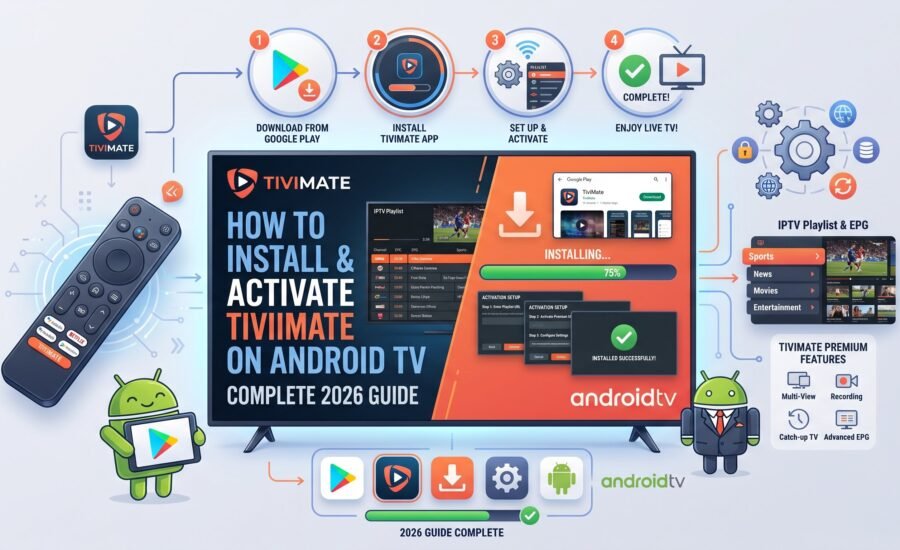
How to Install & Activate TiviMate on Android TV —
Complete 2026 Guide
TiviMate is one of the most powerful IPTV players available for Android TV — featuring a beautiful TV guide grid, catch-up support, multi-playlist management, and seamless integration with your IPTVCAPITAL subscription. This guide covers everything: prerequisites, both installation methods, full setup with your credentials, Premium activation, and troubleshooting.
- What is TiviMate and why is it the best IPTV player for Android TV?
- Prerequisites — what you need before installing
- Method 1 — Install TiviMate via Google Play Store
- Method 2 — Install TiviMate via Downloader app
- Connect TiviMate to your IPTVCAPITAL subscription
- TiviMate Premium — features and how to activate
- Optimise TiviMate settings for the best experience
- Troubleshooting common TiviMate issues
- Frequently asked questions
What Is TiviMate and Why Is It the Best IPTV Player for Android TV?
TiviMate is a dedicated IPTV player built specifically for Android TV and Android TV boxes. Unlike general-purpose media players that happen to support IPTV, TiviMate is designed from the ground up for the television streaming experience — with a full-screen EPG grid, remote-friendly navigation, multi-playlist support, and a polished interface that feels native to your TV screen.
It does not provide any content of its own. TiviMate is the player — your IPTVCAPITAL subscription is the content. Together, they deliver a viewing experience that rivals a cable set-top box at a fraction of the cost.
- Full EPG grid view — scroll through channels and schedules exactly like a cable TV guide, with 7-day programme data loaded automatically from your IPTVCAPITAL subscription
- Catch-up TV (Premium) — watch programmes you missed from the past few days where your IPTVCAPITAL plan supports it
- Multiple playlists — manage more than one IPTV subscription simultaneously from a single app
- Recording (Premium) — record live TV directly to a connected USB drive or network storage
- Beautiful, TV-native interface — designed for remote control navigation, not for mouse and keyboard
- Stable performance — one of the most reliable IPTV players available for the Firestick and Android TV ecosystem
TiviMate and V12Mate conflict with each other and cannot be installed on the same device simultaneously. If you have V12Mate installed on your Android TV or Firestick, uninstall it first before installing TiviMate. Go to Settings → Applications → Manage Installed Applications → V12Mate → Uninstall, then proceed with TiviMate installation.
Prerequisites — What You Need Before Installing
Before you begin the installation process, confirm you have everything on this list. Most Canadian households will already have all of it ready.
TiviMate works on any Android TV or Android TV box running Android 5.0 (Lollipop) or higher. This includes Nvidia Shield, Xiaomi Mi Box, MECOOL boxes, and most modern Android TV devices. To check your Android version: Settings → About → Android Version.
A stable internet connection is required for both installation and streaming. A minimum of 10 Mbps is recommended for HD streaming. A wired Ethernet connection delivers the best stability, but 5GHz Wi-Fi works well in most Canadian homes.
Have your IPTVCAPITAL welcome email ready. You will need your server URL, username, and password to connect TiviMate to your subscription. These are sent within minutes of subscribing at iptvcapital.ca.
If using the Downloader method (Method 2), you need to allow installation from unknown sources. Go to Settings → Security & Restrictions → Unknown Sources and toggle on the Downloader app. This is required only for sideloading — not for the Play Store method.
Use Method 1 (Google Play Store) if TiviMate is available in the Play Store on your device — it is the simplest approach and ensures you always have the latest version with automatic updates. Use Method 2 (Downloader) if TiviMate is not available in the Play Store on your specific device, or if you prefer to install a specific version of the APK directly.
Method 1 — Install TiviMate via Google Play Store
This is the easiest and most recommended installation method. The Google Play Store handles the download, installation, and future updates automatically.
From your Android TV home screen, navigate to the Google Play Store app. It is typically visible on the home screen or accessible from the Apps section. If it is not immediately visible, use the search function on your home screen to find it.
Open the Play Store and navigate to the Search bar. Using your remote or an on-screen keyboard, type TiviMate. The full app name is TiviMate IPTV Player, developed by Artem Nekrasov. Select it from the search results — it has an orange and white TV icon.
On the TiviMate app page, select Install. The app is free to download (approximately 15–20 MB). The download and installation typically takes 30–60 seconds on a standard Canadian broadband connection. Wait for the progress bar to complete.
Once installed, select Open from the Play Store page, or find TiviMate in your Apps section on the Android TV home screen. The app will launch and display the setup welcome screen. Proceed to Section 5 below to connect your IPTVCAPITAL subscription.
- Installation fails — Check your internet connection and ensure the Google Play Store app itself is up to date (Play Store → Settings → Update Play Store)
- TiviMate not found — Try searching "TiviMate IPTV" or "ar.tvplayer.tv". If it does not appear, your device's Play Store region may not carry it — use Method 2 instead
- Insufficient storage — Go to Settings → Device Preferences → Storage and clear cached data from apps you rarely use to free up space
Method 2 — Install TiviMate via the Downloader App
If TiviMate is not available in the Google Play Store on your device, or if you prefer sideloading, the Downloader app method is the standard alternative. This method installs TiviMate as an APK file directly from the internet.
Part A — Enable Unknown Sources and Install Downloader
Go to Settings → Security & Restrictions (the exact path varies by Android TV manufacturer — it may also be under Privacy or Device Preferences). Find Unknown Sources or Install Unknown Apps and toggle it on. You may be asked to confirm a security warning — tap OK to proceed.
Open the Google Play Store and search for Downloader by AFTVnews. It has an orange icon. Install it — it is free and takes under a minute. Once installed, find it in your Apps section. When you open it for the first time, select Allow when it requests permission to access storage.
Return to Settings → Security & Restrictions → Unknown Sources. Find Downloader in the app list and toggle it to ON. This allows the Downloader app specifically to install files — a more targeted permission than enabling all unknown sources globally.
Part B — Download and Install TiviMate
Open the Downloader app. You will see a URL/code input field at the top of the screen. Enter the TiviMate Downloader code: 272483 and press GO. Downloader will look up the code and automatically direct you to the TiviMate APK download. Alternatively, you can enter the direct APK URL if you have it — Downloader accepts both codes and full URLs.
When the TiviMate installer launches, you will be presented with a Privacy Policy screen. Read through it and select Accept or Agree to proceed. This is required before the installation can continue.
On the installation confirmation screen, select Install. Android TV will display a progress bar as TiviMate installs. This takes approximately 20–40 seconds. When installation completes, the screen will confirm the app is installed successfully.
On the completion screen, select Done — do not tap Open yet. Downloader will prompt you to delete the APK installer file. Select Delete and confirm with OK. This is good practice — the APK file has served its purpose and removing it frees up storage on your device.
Navigate to your Android TV home screen and go to Apps. TiviMate will appear in your installed apps list. Select it to launch the app and proceed to the setup steps in Section 5 below.
Connect TiviMate to Your IPTVCAPITAL Subscription
With TiviMate installed, the next step is connecting it to your IPTV Canada subscription. Have your IPTVCAPITAL welcome email open — you will need your server URL, username, and password. The Xtream Codes method is strongly recommended as it loads your channel list and EPG automatically.
Adding Your IPTVCAPITAL Playlist via Xtream Codes (Recommended)
On the TiviMate welcome screen, select Add Playlist. If you have already set up TiviMate previously, go to Settings → Playlists → Add Playlist to add your IPTVCAPITAL account.
TiviMate will present options for adding a playlist. Select Xtream Codes API (sometimes shown as Login with Xtream Codes). This is the preferred connection method for IPTVCAPITAL — it loads your channel list, EPG data, and VOD library automatically from a single login.
Enter your three pieces of IPTVCAPITAL login information exactly as they appear in your welcome email:
• Server URL — the full URL provided (e.g., http://server.iptvcapital.ca:port)
• Username — your account username
• Password — your account password
Double-check for typos — even a single incorrect character will prevent the connection from working.
Tap Add or Next. TiviMate will connect to IPTVCAPITAL's servers and begin loading your channel list. Depending on your internet speed, this takes 30–90 seconds. You will see a progress indicator as TiviMate downloads your channel categories, EPG data, and VOD library.
Once loading is complete, TiviMate will take you to the main interface. Navigate to Live TV to see your full IPTVCAPITAL channel list, organised into categories (Sports, Canadian, News, International, etc.). Press the remote's Guide or menu button to open the full EPG grid — showing current and upcoming programming across all channels.
Adding via M3U Playlist URL (Alternative Method)
If you prefer to use an M3U playlist URL rather than Xtream Codes login, select M3U Playlist when prompted and enter your IPTVCAPITAL M3U URL. You will then need to manually add your EPG URL in Settings → EPG → Add Source using the XMLTV URL from your IPTVCAPITAL account. The Xtream Codes method is recommended as it handles both the channel list and EPG automatically.
Setting Up Your Sports Favourites
After your channels load, set up a Favourites group for quick access to Canadian sports channels. Navigate to a channel (TSN1, for example), press and hold with your remote to access the channel options, and select Add to Favourites. Do this for TSN1–TSN5, all Sportsnet regional feeds, RDS, RDS2, CBC, and any other channels you watch regularly. Your Favourites group becomes your primary navigation shortcut on game nights.
On first login, TiviMate will download your complete EPG data set. This can take 2–5 minutes if you have a large channel list. Do not close the app during this process. Once the initial EPG load completes, subsequent refreshes happen automatically in the background and are much faster. Your EPG will update daily to reflect the current 7-day programme schedule.
TiviMate Premium — Features and How to Activate
TiviMate is free to download and use with your IPTVCAPITAL subscription. A Premium upgrade (one-time purchase via the TiviMate Companion app) unlocks several powerful additional features that significantly enhance the IPTV experience. Here is what Premium adds.
Record live TV channels directly to a connected USB drive or network storage (NAS). Schedule recordings in advance from the EPG — tap a future programme and select Record.
Watch programmes you missed from the past several days, where your IPTVCAPITAL plan supports it. Navigate back in the EPG grid to past time slots and play the recording.
Add and switch between more than one IPTV subscription in the same app. Useful for households with different accounts or users who manage a reseller account alongside a personal subscription.
Set reminders for upcoming programmes directly from the EPG. TiviMate will alert you when a programme is about to start — perfect for live sports and scheduled events.
Unlock additional theme options, custom colour schemes, panel layouts, and display preferences. Tailor TiviMate's interface precisely to your viewing preferences.
Use your smartphone as a remote control and keyboard for TiviMate. The Companion app (Android / iOS) also manages your Premium subscription and playlists from your phone.
How to Activate TiviMate Premium
- Download the TiviMate Companion app on your Android smartphone from the Google Play Store (search "TiviMate Companion").
- Open the Companion app and create a TiviMate account using your email address.
- Purchase a Premium subscription within the Companion app — it is a one-time or annual payment, not a recurring charge.
- On your Android TV, open TiviMate and go to Settings → Premium Account.
- Sign in with the same email address you used for the Companion app. Your Premium features activate immediately.
For Canadian sports fans who want to record games they cannot watch live and set reminders for NHL puck drops and CFL kickoffs, TiviMate Premium pays for itself quickly. For viewers who simply want a great channel guide and live streaming experience, the free version of TiviMate with your IPTVCAPITAL subscription delivers everything they need.
Optimise TiviMate Settings for the Best Experience
TiviMate works well out of the box, but a few settings adjustments make a noticeable difference in performance and usability — particularly for live Canadian sports streaming.
Set the Video Player to Auto or ExoPlayer
Go to Settings → Player → Video Player and select Auto (TiviMate chooses the best decoder for each stream) or ExoPlayer explicitly. ExoPlayer is the most efficient decoder for live streaming on Android TV, handling variable-bitrate sports broadcasts more smoothly than the internal player alternative. If you notice buffering on specific channels, try switching between Auto and ExoPlayer to see which delivers better stability on that channel.
Configure EPG Auto-Refresh
Go to Settings → EPG and confirm that automatic EPG refresh is enabled. Set the refresh interval to 24 hours — daily refresh keeps your programme guide current without placing unnecessary load on your device or internet connection. If you notice outdated schedules at any point, use Settings → EPG → Update Now to force an immediate refresh.
Set Your Time Zone Correctly
In Settings → EPG, confirm your time zone is set to your correct local time zone. This is critical for sports fans — an incorrect time zone offset means the EPG shows NHL puck drops and CFL kickoffs at the wrong time. Canadian time zones: Eastern (ET), Central (CT), Mountain (MT), Pacific (PT). Get this right once and the guide will always show accurate programme times.
Organise Your Channel Groups
Go to Settings → Playlists → [Your IPTVCAPITAL Playlist] → Groups. Here you can hide channel groups you never watch (for example, if you want to remove non-Canadian language groups from the main navigation). Hiding unused groups makes navigating your channel list significantly faster and reduces the EPG data volume the app processes on each refresh.
Enable Parental Controls if Needed
TiviMate Premium allows you to set a PIN code that restricts access to specific channel groups. Go to Settings → Parental Control to configure this. Useful for households where children have access to the TV — restrict adult channel categories while leaving family-friendly sports and entertainment fully accessible.
Use a Wired Ethernet Connection
For the best live sports streaming performance with TiviMate and IPTVCAPITAL, connect your Android TV box to your router via Ethernet rather than Wi-Fi. This eliminates signal interference and delivers a consistent data rate — essential for HD and 4K live sports streams where even brief buffering during critical play moments is genuinely frustrating.
Troubleshooting Common TiviMate Issues
Most TiviMate problems have simple causes and straightforward solutions. Here are the five most common issues encountered by Canadian IPTV subscribers and exactly how to fix them.
After entering your IPTVCAPITAL credentials, TiviMate returns an authentication error or fails to load any channels. The most common cause is a typo in your server URL, username, or password — even a single incorrect character will cause a complete login failure.
Go to Settings → Playlists → [Your Playlist] → Edit and re-enter each credential character by character, comparing against your IPTVCAPITAL welcome email. Pay special attention to uppercase vs. lowercase, the number 0 vs. the letter O, and the number 1 vs. the letter l. Also confirm your IPTVCAPITAL subscription is active and has not expired.
Your channels are working and streaming correctly, but the EPG guide shows empty time slots with no programme information. The EPG file may not have loaded correctly on initial setup, or it may be a channel ID mapping issue for specific channels.
Go to Settings → EPG → Update Now to force a full EPG refresh. Wait 2–3 minutes for the download to complete. If specific channels still show no EPG data after a successful refresh, use the channel mapping feature: long-press the affected channel → Edit Channel → EPG ID → search for the correct channel name and select the matching entry.
Streams buffer or stutter specifically during live sports broadcasts, while other channels play smoothly. This indicates a bandwidth issue — either your internet connection is not providing sufficient consistent speed, or your ISP is throttling streaming traffic during peak hours.
First, switch from Wi-Fi to a wired Ethernet connection if possible. If you are already wired, run a speed test — you need at least 10 Mbps stable for HD. In TiviMate, go to Settings → Player → Video Player and try switching between Auto and ExoPlayer. If buffering occurs specifically in the evenings, your ISP may be throttling streaming — try a VPN connected to a Canadian server to bypass throttling.
TiviMate crashes frequently or becomes slow and unresponsive, particularly after extended use. This is usually caused by accumulated cache data, low device RAM, or background apps competing for resources on the Android TV box.
Clear TiviMate's cache: Settings → Apps → TiviMate → Clear Cache. Restart your Android TV box completely (unplug power for 30 seconds). Close all background apps before launching TiviMate — on older or budget Android TV boxes, RAM management is critical for smooth IPTV playback. If crashes continue, uninstall and reinstall TiviMate from the Play Store for a clean install.
The EPG guide shows the correct programme names but at the wrong times — for example, showing a hockey game as starting at 10 PM when it actually starts at 7 PM ET. This is almost always a time zone configuration problem in TiviMate's settings.
Go to Settings → EPG → Time Offset. Set your correct local time zone offset from UTC: Eastern Canada is UTC-5 (EST) or UTC-4 (EDT), Central is UTC-6/UTC-5, Mountain is UTC-7/UTC-6, Pacific is UTC-8/UTC-7. After correcting the offset, force-refresh the EPG (Settings → EPG → Update Now) and the programme times will display correctly.
Frequently Asked Questions
Is TiviMate free to use with my IPTVCAPITAL subscription?
Yes. TiviMate is free to download and use. The free version supports one playlist, live TV with EPG, and all basic streaming functions — everything you need to enjoy your IPTVCAPITAL subscription. TiviMate Premium is an optional paid upgrade that unlocks recording, catch-up, multiple playlists, and programme reminders.
Does TiviMate work on Amazon Firestick?
TiviMate is primarily designed for Android TV and Android TV boxes. It is not directly available on Firestick from the Amazon App Store, as Firestick runs Fire OS rather than standard Android TV. For Firestick users, IPTV Smarters Pro or V12Mate are the recommended apps — both work seamlessly with IPTVCAPITAL. If you have a Firestick and want TiviMate specifically, some users sideload it via Downloader, but official support is for Android TV devices.
Can I use TiviMate with the Xtream Codes API from IPTVCAPITAL?
Yes — and this is the recommended login method. The Xtream Codes API connection automatically loads your channel list, organises it into categories, fetches your EPG URL, and populates your VOD library without requiring any additional configuration. Simply enter your IPTVCAPITAL server URL, username, and password when adding a playlist and select Xtream Codes API.
How do I update TiviMate to the latest version?
If you installed TiviMate from the Google Play Store, updates are handled automatically when Play Store auto-updates are enabled. You can also manually check for updates by opening the Play Store, searching TiviMate, and selecting Update if available. If you installed via Downloader, repeat the Downloader installation process with the latest APK to update to the newest version.
Can I have both TiviMate and IPTV Smarters Pro installed?
Yes — TiviMate and IPTV Smarters Pro can coexist on the same device without conflict. Only TiviMate and V12Mate are known to conflict with each other. Many IPTVCAPITAL subscribers keep both TiviMate (for the superior EPG grid experience) and IPTV Smarters Pro (as a backup and for its VOD interface) installed on the same Android TV box.
Why can't I find TiviMate in the Google Play Store?
TiviMate's availability in the Play Store can vary by device region and manufacturer. If it does not appear in your Play Store, use Method 2 (the Downloader app with code 272483) to sideload it directly. The sideloaded version is identical to the Play Store version and receives the same updates.
My channels loaded but some have no EPG — what do I do?
Channels without EPG data usually have a channel ID mismatch. Long-press the affected channel → select Edit Channel → tap the EPG ID field → search for the channel name (e.g., "TSN1 Canada") and select the correct match. Save the change. This manually maps the channel to its correct EPG entry and programme data will populate on the next guide refresh.
Is TiviMate compatible with IPTVCAPITAL's catch-up feature?
TiviMate Premium supports catch-up TV where the IPTV provider's servers supply catch-up content. If catch-up is included in your IPTVCAPITAL plan, enabling it in TiviMate Premium allows you to navigate backwards in the EPG to past time slots and play previously aired content. Check your IPTVCAPITAL plan details for catch-up availability.
TiviMate + IPTVCAPITAL — The Best Android TV Streaming Setup in Canada
TiviMate transforms your Android TV box into a premium streaming experience that genuinely rivals a cable set-top box — with a beautiful EPG grid, smooth channel navigation, reliable playback, and the full depth of your IPTVCAPITAL channel lineup available at your fingertips. Installation takes 10–15 minutes whether you use the Play Store or the Downloader method, and the connection to your IPTVCAPITAL subscription is automatic with Xtream Codes login.
Start with the free version to experience the core features. If recording, catch-up TV, and programme reminders matter to you, upgrade to TiviMate Premium — it is a one-time purchase that unlocks the full potential of the app alongside your IPTVCAPITAL subscription.
📺 Ready to Stream? Get Your IPTVCAPITAL Subscription
10,000+ live channels · Full Canadian sports · HD & 4K quality · Built-in EPG · No contracts. Subscribe to IPTVCAPITAL and pair it with TiviMate for Canada's best Android TV streaming experience.
Get Your IPTVCAPITAL Subscription